Stop win10 update
Methods To Stop Windows
Update Permanently
To Permanently Turn Off Updates on Windows,
the following guidelines should be used. We will stat with the Service
Application first.
Method 1:
Stop Windows Update Permanently using Services
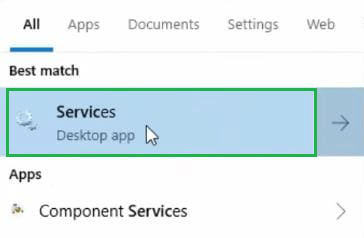
Step 1: At first, open the
Search Box & write down Services there.
Now, the Service option will be available & click on it.
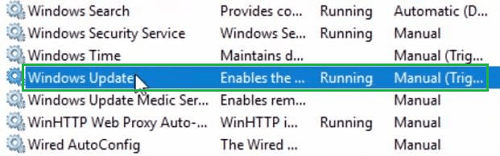
Step 2: A big list will appear in the
next window. Search for the Windows Update option &
right-click over there.
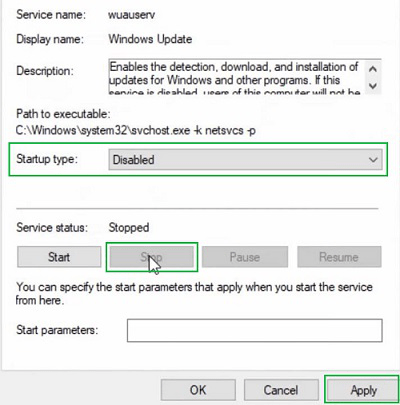
Step 3: A new popup window will be
opened. From the Startup Type dropdown menu, select
the Disable option. And just below it, click on the
Stop button. In the end, click on the
Apply button to save the changes.
Hence, we have successfully stopped Windows 10 updates using
the Services on the device.
Method
2: Stop Windows Update Permanently using Group Policy
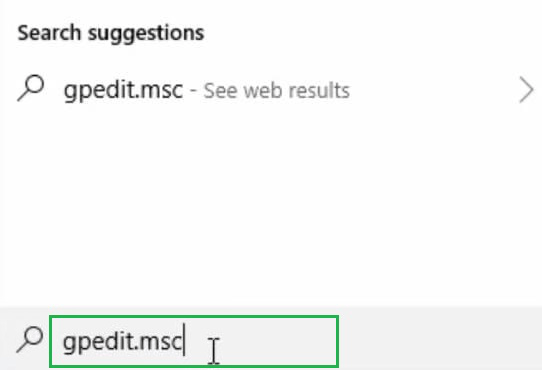
Step 1: Agin open the Search
bar in Windows 10 & Search for the “gpedit.msc”.
Just press Enter to move ahead.
Step 2: Now, the window for the
Group Policy will be opened. In the left sidebar,
first, expand the Administrative Templates. And
inside that, again expand the folder Windows Components.
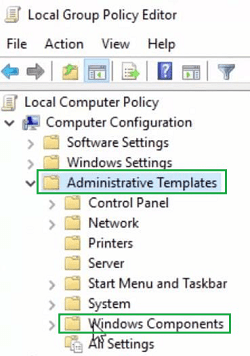
Step 3: Now, on the right-hand side of
the screen, double-click on the option Configure Automatic Update
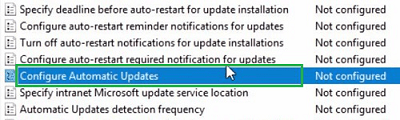
Step 4: On the left-hand side of the
screen, three-button options are present. Click on the option
Disable & close the windows.
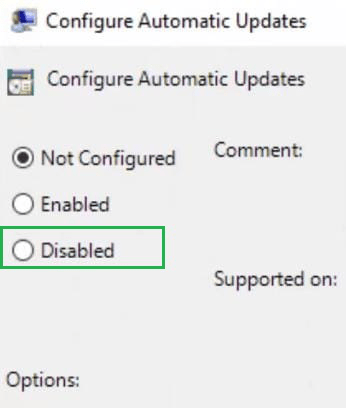
Hence, we have successfully stopped Windows 10 updates using
the Group Policy on the device.
Method 3: Stop Windows Update Permanently using Register Policy
Step 1: To Stop Windows 10
from updating, run the “regedit”
command in the Search Box on the device. Press Enter
to move ahead.
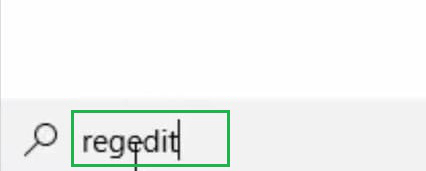
Step 2: Now, a new window will be
opened & the below-mentioned path should be followed by expanding folders on
the Left Hand Side of the Screen. After reaching the endpoint of the path,
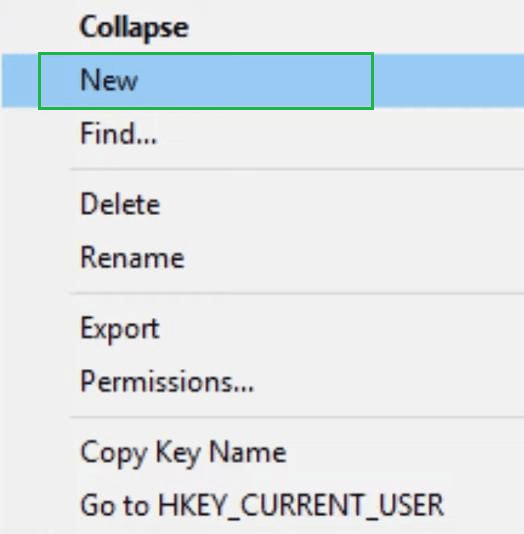
Right-click on the folder Windows. Some more options
will be available. Among them click on the New
option.
Path:
HKEY_LOCAL_MACHINE\SOFTWARE\Policies\Microsoft\Windows
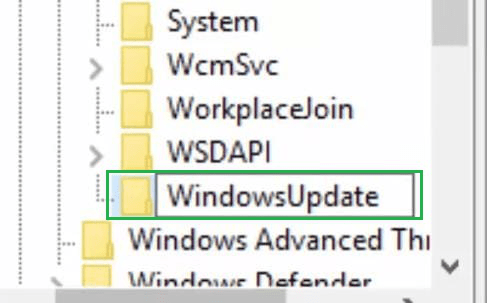
Step 3: A new subfolder will be created
inside the Windows folder. Give the name
“WindowsUpdate”.
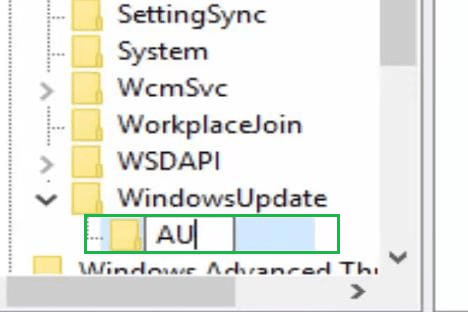
Step 4: Inside the
“WindowsUpdate” using the same process create another
subfolder. And provide its name as “AU”.
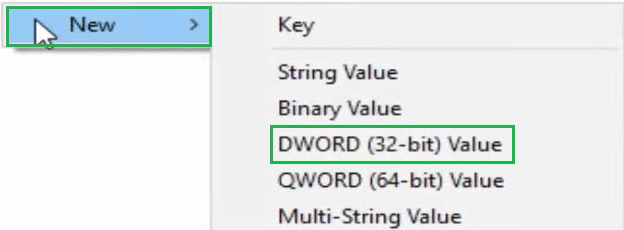
Step 5: On the right-hand side of the
screen, right-click anywhere. Under the New option,
select the option DWORD (32-bit) Value.
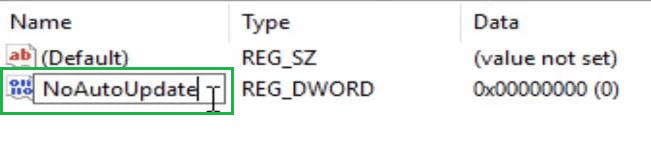
Step 6: Now, a new value will be added
there & the value will be “NoAutoUpdate”. Then press
Enter to save the changes & close all the windows.
Hence, we have successfully stopped Windows 10 updates using
the Register Policy on the device.
Method 4: Stop Windows Update Permanently using Task Scheduler
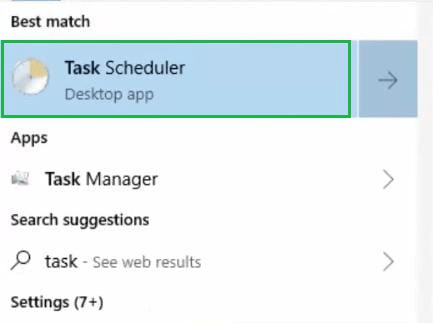
Step 1: To Stop Updating
Windows 10, search for the Task Scheduler
in the Search bar on the device. One option will be
available with the same name, click on that to move ahead.
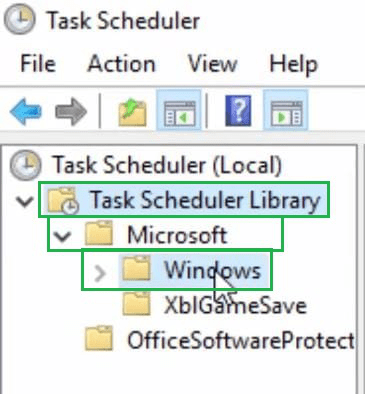
Step 2: On the left-hand side of the
screen, expand the folder Task Scheduler Library.
Under such folder, again expand the folder Microsoft.
Inside the Microsoft folder, the Windows folder will
be available.
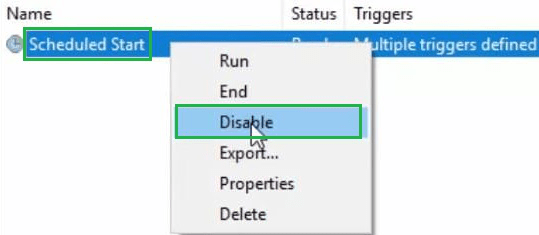
Step 3: In the right-hand side window,
a Schedule Start option is present. Right-click on
the option & click on the Disable option to complete
the process.
Hence, we have successfully stopped Windows 10 updates using
the Task Scheduler on the device.
Method
5: Stop Windows Update Permanently by Pausing Updates
Step 1: Open the
Settings. Inside the Setting window, click on
the Update & Security option.
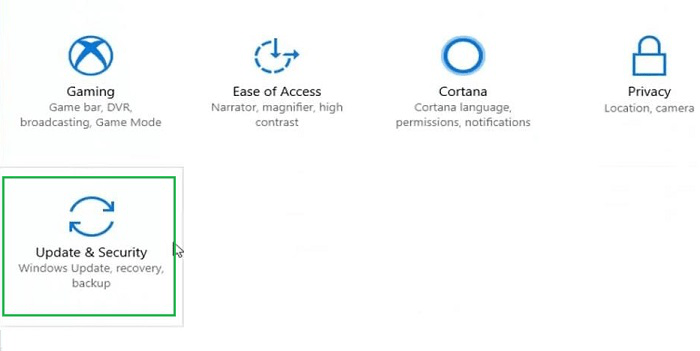
Step 2: In the next window, click on
Advanced Options under the Update Settings.
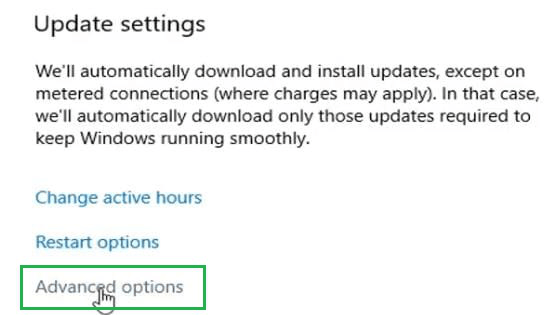
Step 3: Inside the next window, the
Pause Updates option will be available &
enable the button. It will pause the updates in Windows 10 for
35 days.

Hence, we have successfully stopped Windows 10 updates using
the Pause method on the device.
Method 6: Stop Windows Update Permanently using Metered Connection
Step 1: At first, the
Settings window will be opened. Then among so many options move
for the
Network & Internet option. Click on it to open.
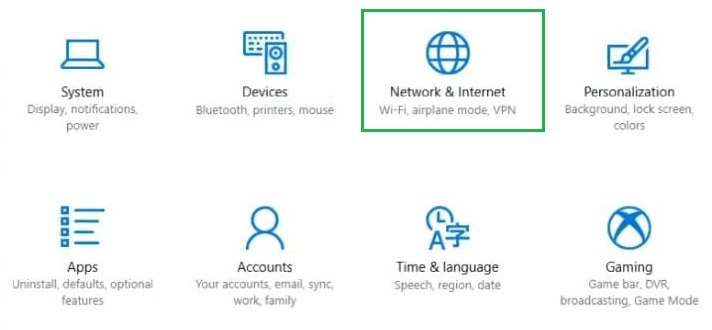
Step 2: In the next window, from the
left-hand side click on the option Ethernet.
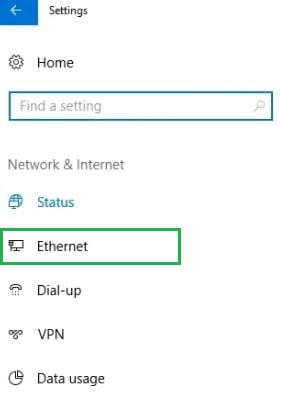
Step 3: On the next window, an option
will be present as the Metered Connection. Enable
the button present below.
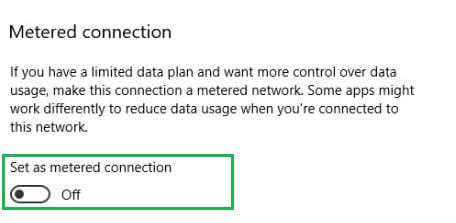
Hence, we have successfully stopped Windows 10 updates using
the Metered Connection method on the device.
Method 7: Stop Windows Update Permanently by Uninstalling Updates
Step 1: In this case also, the
Setitngs of the Windows will be opened. In that window,
click on the Update & Security option.
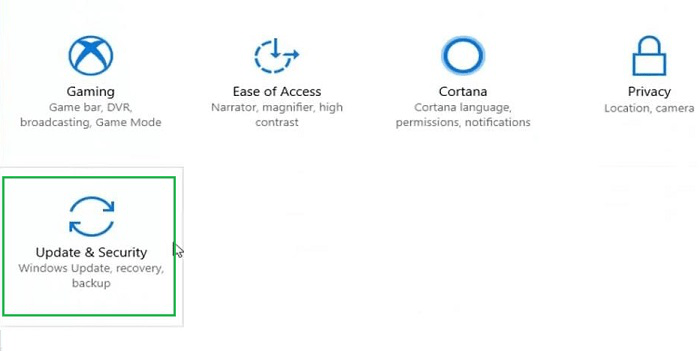
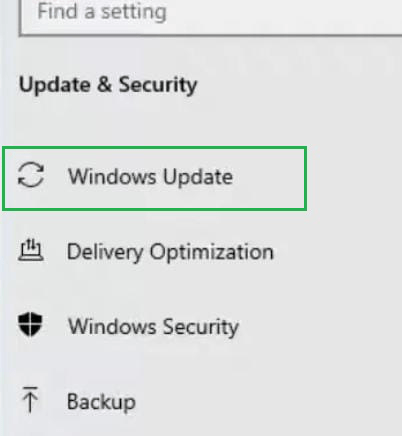
Step 2: In the next window, in the
left-hand sidebar, click on the option Windows Update
from so many options present there.
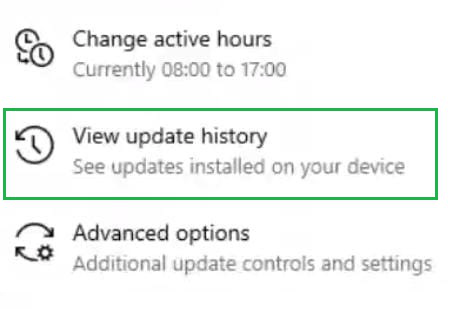
Step 3: After that, click on the
View Update History option to move ahead.
Step 4: In the next window, click on
Uninstall Updates to remove the installed updates from
the device.
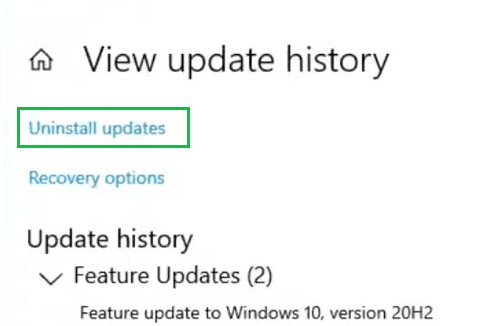
Hence, we have successfully stopped Windows 10 updates by
Uninstalling Updates from the device.